Why bulk parameter editing takes so much time
In Autodesk Revit, editing the same parameter across dozens or hundreds of elements can become a repetitive sequence of filtering, selecting, verifying, and modifying values. Those steps also carry real risk: a selection can include the wrong category, elements from the wrong level, or a parameter with the same display name but a different purpose.
A useful AI workflow should not skip that verification. It should help you identify the right elements, make the selected set visible, clarify which parameter is being used, and keep the actual edit under your control.
What DeepOctopus can help with
Element selection and counting
Find matching categories, levels, types, and parameters. Build a working selection set before editing.
Instance and type parameters
Inspect values and distinguish instance properties from type properties, reducing accidental changes.
Renumbering and value updates
Assign parameter values or renumber matching elements as part of a guided operation.
Review before applying
Use selection sets and confirmation modes to verify the scope of changes before execution.
An example: update door Mark values
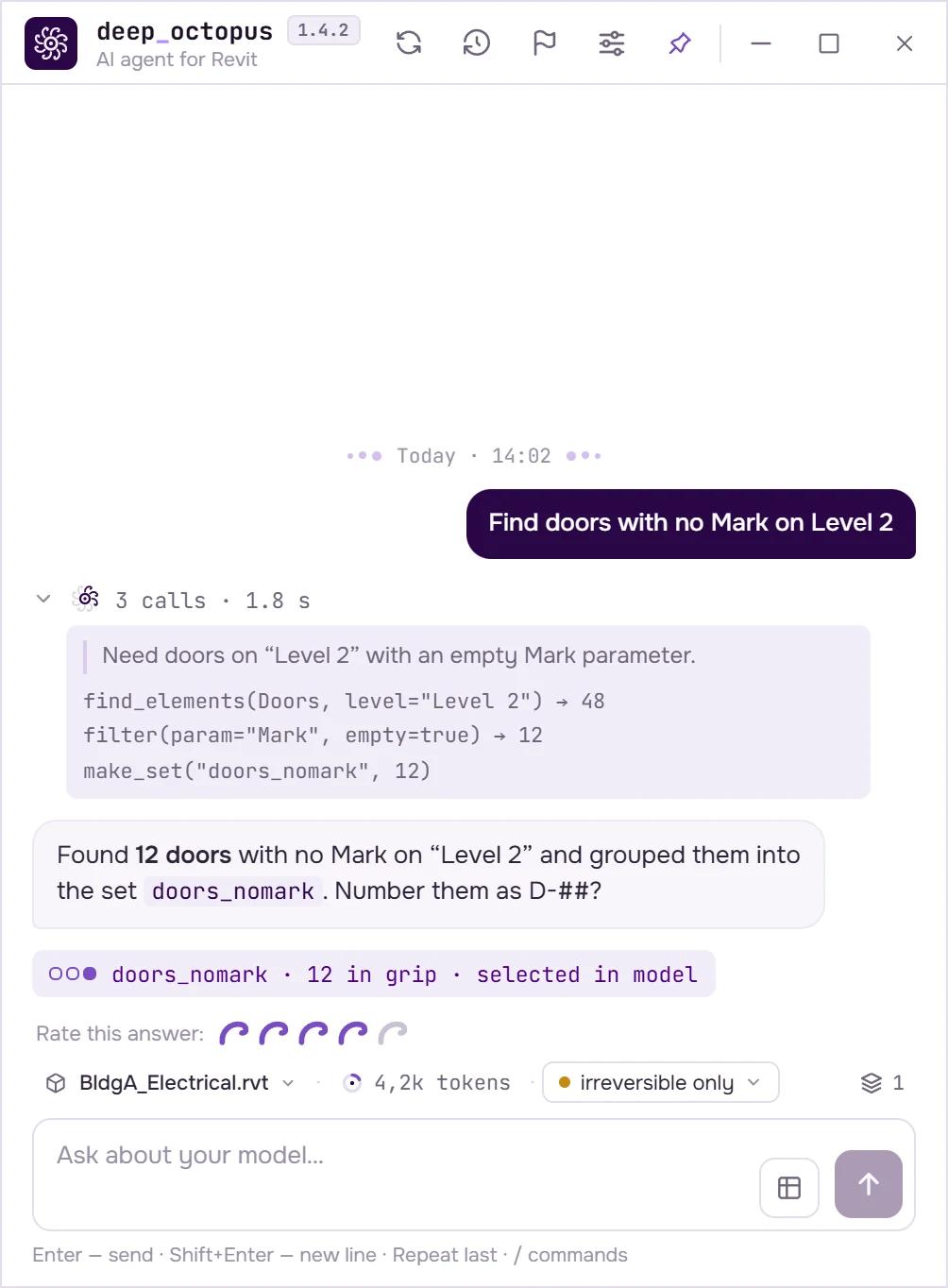
Suppose you need to identify doors on one level where the Mark parameter is empty. You can use a short request to begin the workflow, but you should still inspect the selection and confirm the numbering convention.
- Choose the target model. If several Revit documents are open, confirm the model the agent should work with.
- Inspect the selection. Check element IDs, categories, levels, and any relevant parameter filters.
- Clarify the rule. Set the numbering or value convention explicitly; do not leave critical assumptions implicit.
- Review and apply. Choose the applicable confirmation mode and visually validate the changes in Revit.
The example is a workflow description, not a guarantee that a command with these exact words works in every Revit project. Names and available parameters depend on the model.
When to use AI, and when to use a Revit schedule
Revit schedules are useful for structured data checks and tabular editing. An AI agent is particularly useful when your task crosses several Revit operations: selecting elements, inspecting parameter values, clarifying a rule, editing, and then checking the result.
For a repeatable office standard, save a successful request as a reusable task prompt. Keep the scope narrow: do not combine unrelated categories or multiple parameter changes in one ambiguous instruction.
Model safety matters
DeepOctopus supports confirmation modes, including automatic execution. Use the appropriate mode for the task and review changes in the active Revit project. Make sure your project is backed up according to your team's normal process.